Thank you for utilizing HSCC’s Digital Library! The following tips and tricks should help you more easily find what you’re looking for. We have a collection of FAQs from users of the library as well as a helpful guide to using search filters.
We also maintain a list of findings aids as well for our collections which you can find on this page as well!
In addition to the online resources found on this Digital Library, the Society’s Library of Carroll County History at 216 E. Main Street in Westminster is the repository of an incredible amount of primary source material to help researchers pursue their historical interests. Some of this material is slated for digitization for the Digital Library. Researchers are strongly encouraged to make an appointment with the HSCC Library by calling 410-848-6494 to access materials not yet digitized.
HSCC’s Gorman Library Research Book Catalog can be found by clicking here.
Digital Library Search FAQ
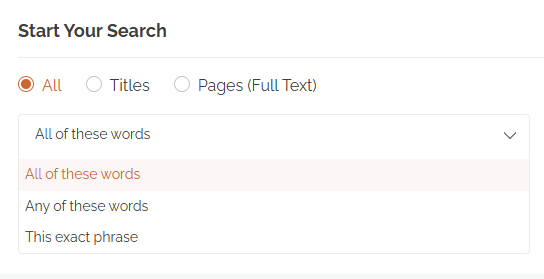
All of these words — Returns results containing every word you enter, in any order and anywhere in the record.
Any of these words — Returns results containing at least one of the words you enter. Use this to cast a wider net.
This exact phrase — Returns only results where your words appear together, in the order you typed them.
When to use Approximate (Fuzzy) Search
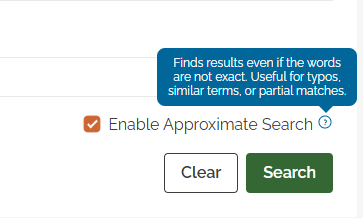
Check this box if you’re not certain how a word or name is spelled, or if an exact search returned fewer results than you expected. Approximate search catches typos, spelling variants, and errors introduced when printed pages were scanned into digital text. Keep in mind that it searches a much larger set of possible matches, so results may take noticeably longer to appear — and you may see some entries that are only loosely related to your term. For quick, precise lookups, leave the box unchecked.
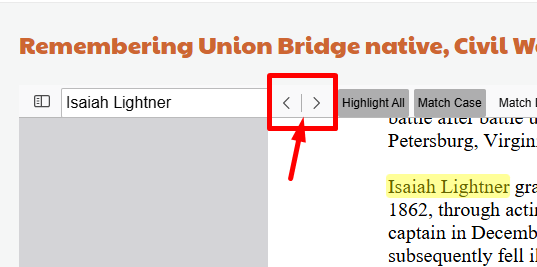
Searching Inside Documents: When you open a document from your search results, your search term is highlighted automatically throughout the text. Use the arrows next to the search box to jump from one highlighted match to the next.
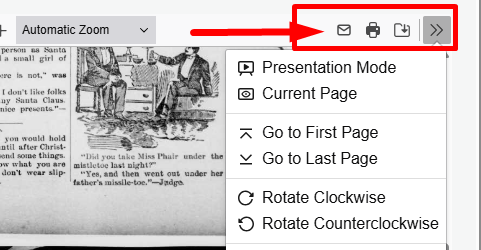
Additional Viewer Tools: The icons at the top right of the document viewer let you email a link to the article, send it to a printer, or download a copy to your computer. Click the double-arrow icon (») at the far right to open the full tools menu, which includes presentation mode, page rotation, text selection and hand tools, and several page layout and scrolling options.
How to Narrow Your Results with Search Filters
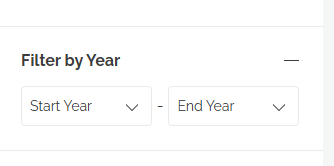
Filter By Year: The Publication Year filter allows you to limit your search results to a specific year or range of years.
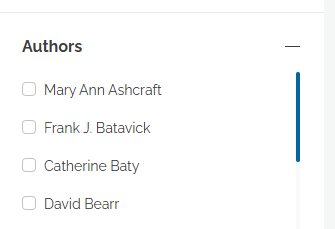
Filter by Author: For publications with a listed author, like Carroll Yesteryears, you can also limit your search to specific authors.
Items Per Page: Easily set the number of results you see per page for ease of viewing.
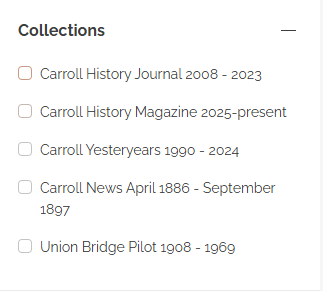
Search by Collection: Quickly limit your search by selecting one or more collections to view only results within those publications!
Still Need Some Help?
We’re happy to answer your research questions! Feel free to reach out to our office at [email protected] or give us a call at 410-848-6494